
Guides
Which process is using this port?
A server will not start because its port is already taken? OFLH helps you find the app responsible. You can also work the other way around: search for an app such as Steam to see which local ports it uses. This guide shows both approaches on Windows, macOS, and Linux.
On this page
Typical errors
- Node.js:
Error: listen EADDRINUSE: address already in use :::3000 - Python, Go, Java, and others: “Address already in use” or “bind: address already in use”.
- Windows: “Only one usage of each socket address (protocol/network address/port) is normally permitted.”
A process already listens on that port, or still holds a bound UDP socket. Stop it, or start your server on another port.
Find the port owner with OFLH Desktop
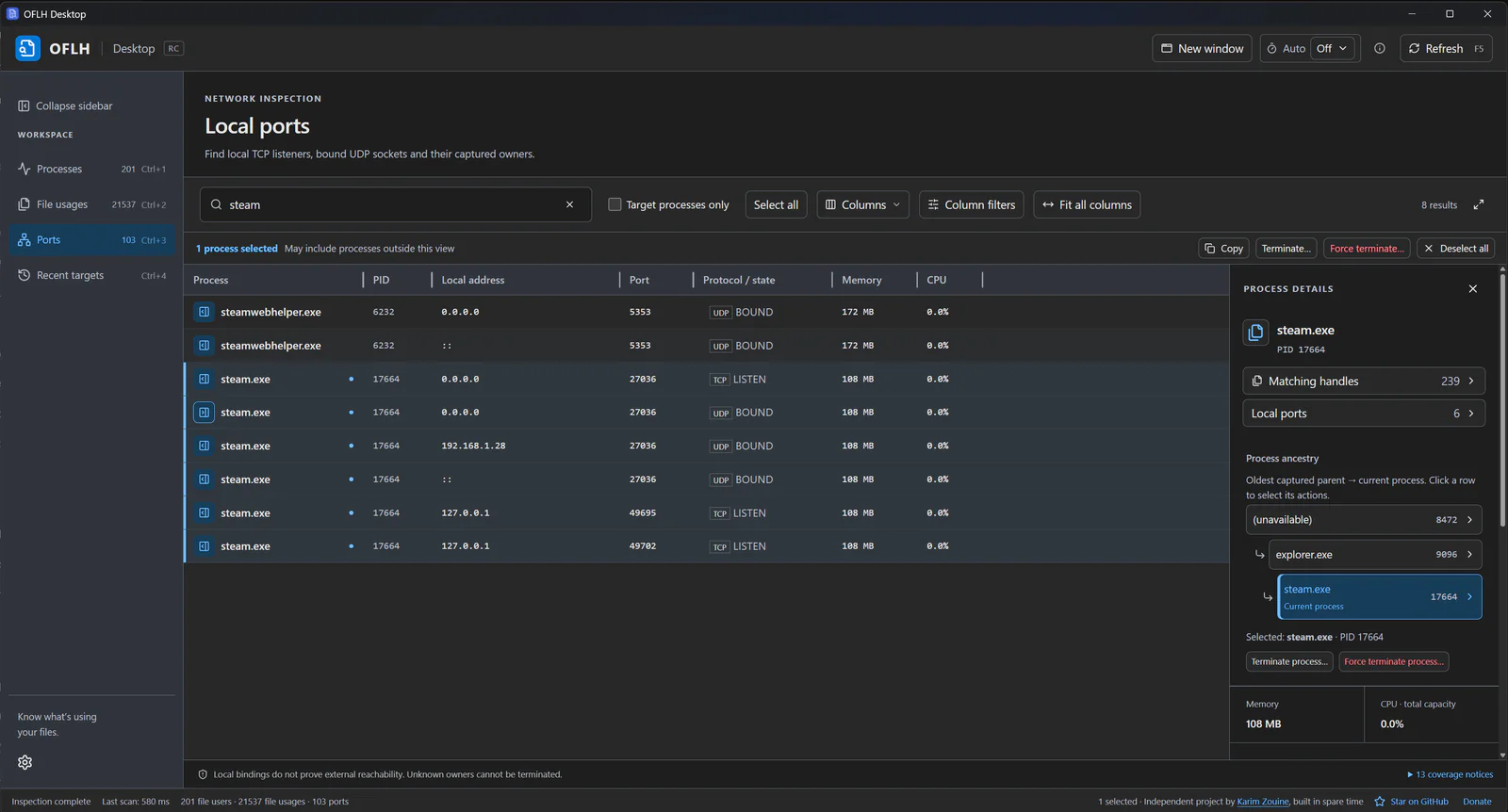
Open Ports in the sidebar and enter steam in the search field, just like the screenshot. The list then shows local ports belonging to steam.exe and steamwebhelper.exe. This tells you which ports an app uses even when you do not know a port number yet.
If you already know the occupied port, search for port:3000 instead. Each result shows the app name, port, local address, and PID. The PID is a running process's identifying number. Use tcp, udp, or pid:1234 to narrow the list further.
Select a row. In the screenshot, steam.exe is selected and its Process details appear on the right. Process ancestry shows which parent process started it. This helps you connect a result to the right app before closing anything.
This view shows ports that apps have bound on your computer: TCP listeners wait for connections, and bound UDP sockets reserve endpoints for UDP. It does not list established connections or check whether another computer can reach a port.
Windows: netstat or PowerShell
netstat -ano prints the PID in the last column; tasklist turns it into a name. In PowerShell, Get-NetTCPConnection gives the owning process directly. Sysinternals TCPView shows the same as a live list.
netstat -ano | findstr :3000
tasklist /FI "PID eq 12345"
Get-Process -Id (Get-NetTCPConnection -LocalPort 3000 -State Listen).OwningProcess
macOS and Linux
On both, lsof -i filters by port. On Linux, ss is usually installed and shows the process with -p; you may need sudo to see processes of other users.
lsof -nP -iTCP:3000 -sTCP:LISTEN
ss -ltnp 'sport = :3000'      # Linux
ss -lunp 'sport = :5353'      # Linux, UDP
Stop the process safely
You do not need to stop an app just to inspect its ports. If you want to free an occupied port, close the app normally first. Stop a development server in its own terminal with Ctrl+C whenever possible.
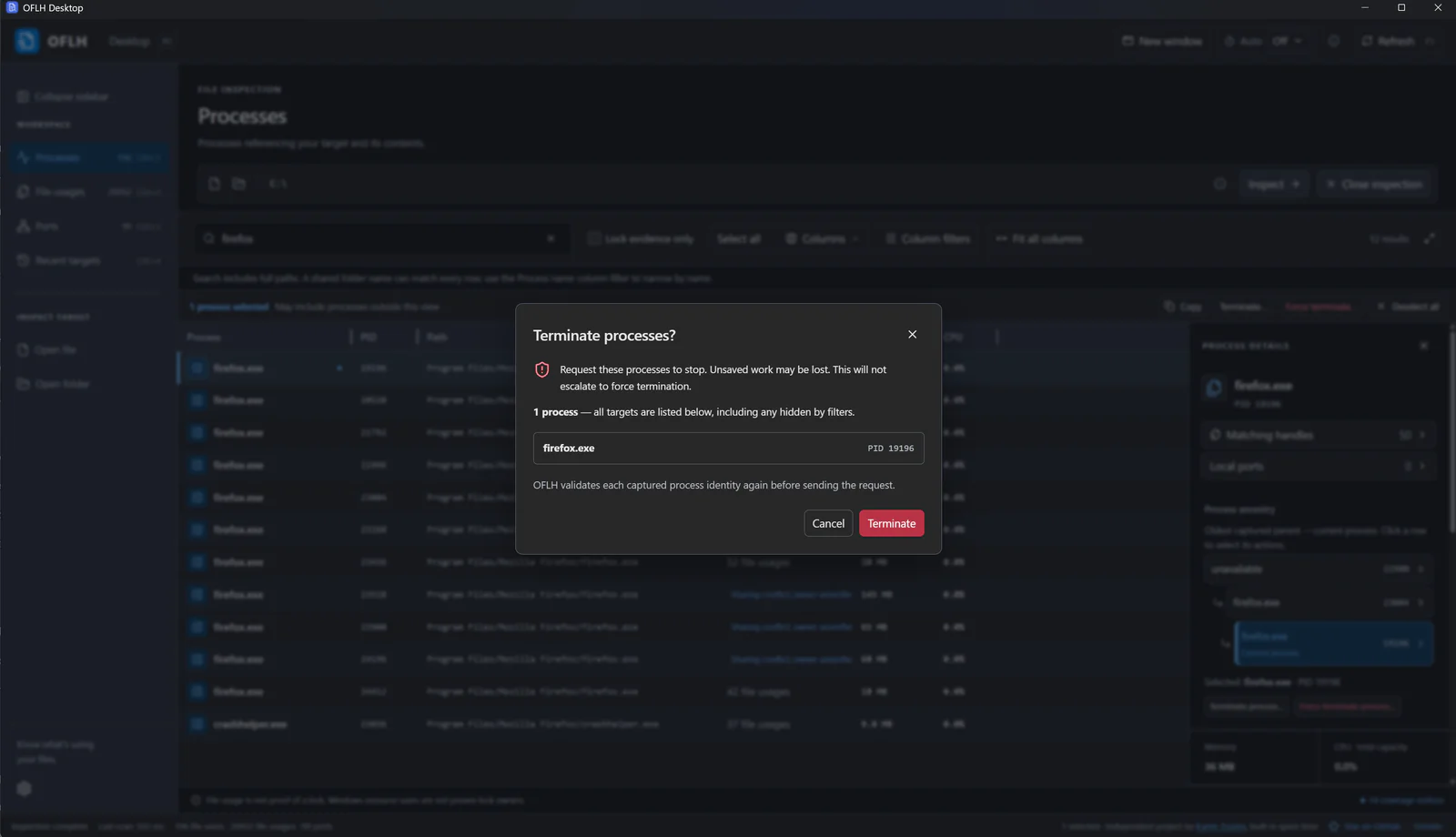
If that is not possible, check the process name and parent processes in OFLH before choosing Terminate. The screenshot illustrates this confirmation with firefox.exe; your result will show its own name. Save your work first, and choose Cancel if you are unsure. Afterwards, press F5 to check whether the port is still occupied.
Prefer the terminal? oflh --port 3000 shows the app behind a particular port, while oflh --ports opens the overview of all local ports.
Screenshots from the project README: OFLH Desktop on Windows, in the dark theme. Select a screenshot to view it at full size.