

Editorial coverage
OFLH on WinFuture (German)
Thank you to the WinFuture editorial team for featuring OFLH.
Read the article (German)Open File Lock Handle
A file won’t rename or delete? oflh shows which processes use it and which app started them. Inspect files, folders, whole drives, and local ports in the desktop app or interactive terminal app on Windows, Linux, and macOS.
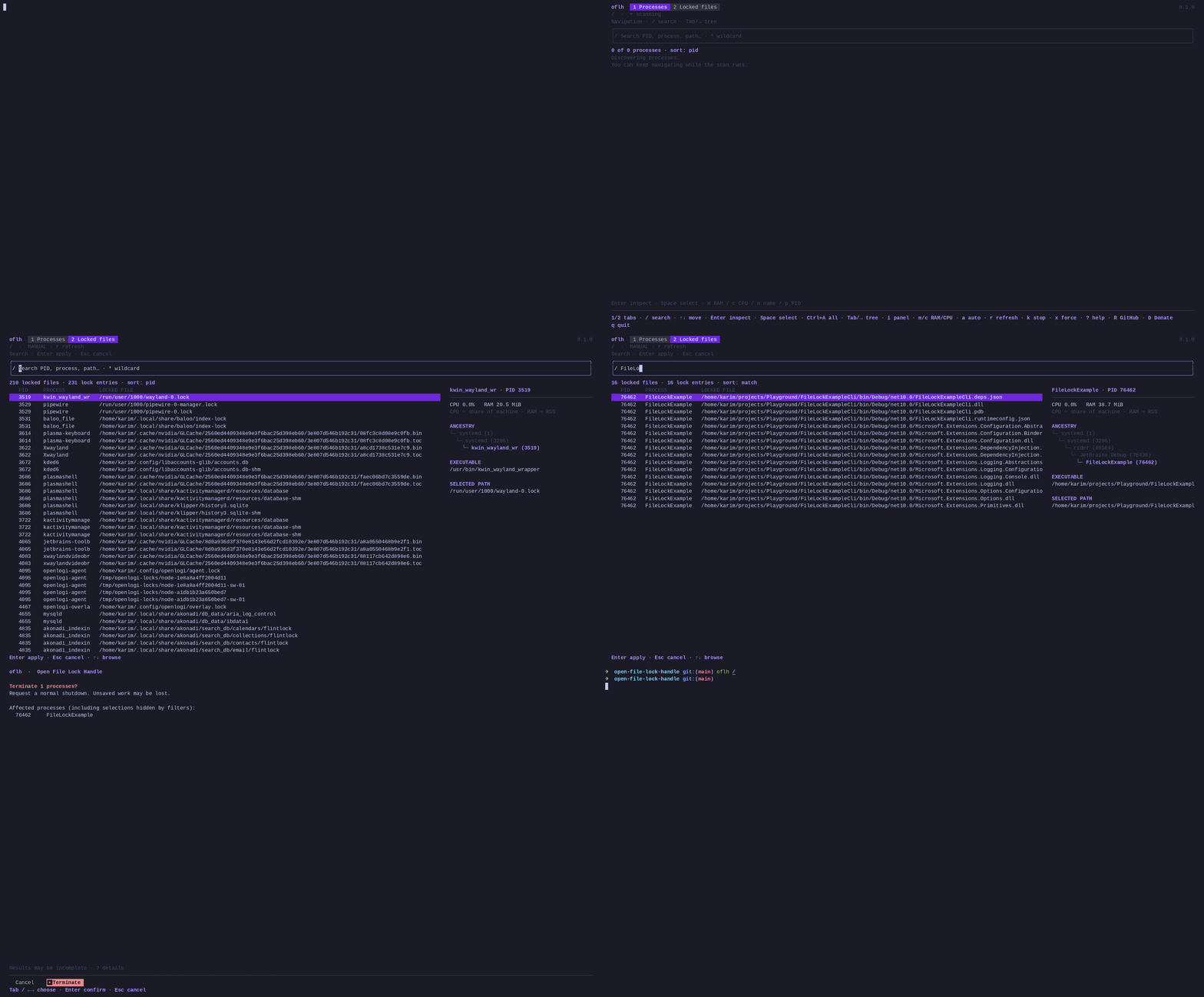
For developers and admins who hit “file is open in another program”, “Device or resource busy”, or “address already in use”.
port:3000.oflh ./build# who holds anything under ./buildoflh 'C:\'# whole C: drive (PowerShell)oflh --port 3000# who listens on port 3000
Thank you to the WinFuture editorial team for featuring OFLH.
Read the article (German)Explore the OFLH listing and compare software alternatives.
View the AlternativeTo listingSame scanner, same results. Pick the one that fits how you work.
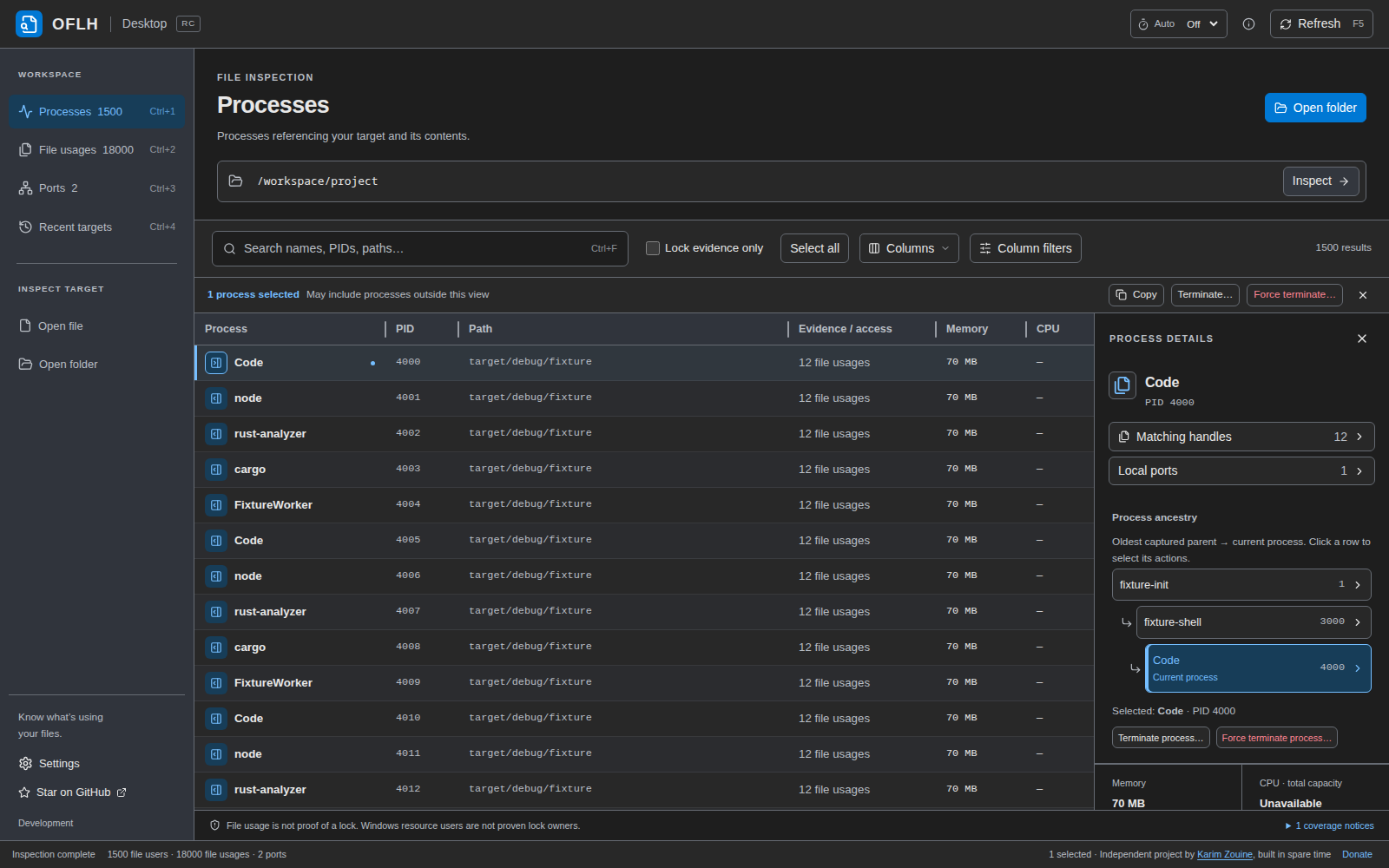
Open or drop a file or folder, narrow the list with search, column filters, or Lock evidence only, and follow the parent tree in the details panel.
Explore the desktop walkthrough →Download the desktop app →A single 5–6 MB executable with no installer. Keyboard-driven views for processes, locked files, and ports, with search that understands wildcards and word initials.
Watch on asciinema →Download the terminal app →When a file will not delete or a server will not start, work from the target to the process and the app behind it.
Windows screenshots from the project README · Click an image to enlarge
Choose Open file or Open folder, drop a path, or inspect a whole drive such as C:\. Search by process name, PID, or full path, then select a row to see its Matching handles and Process ancestry.
On Windows, you can also right-click a file or folder in File Explorer and choose Inspect file or Inspect folder.
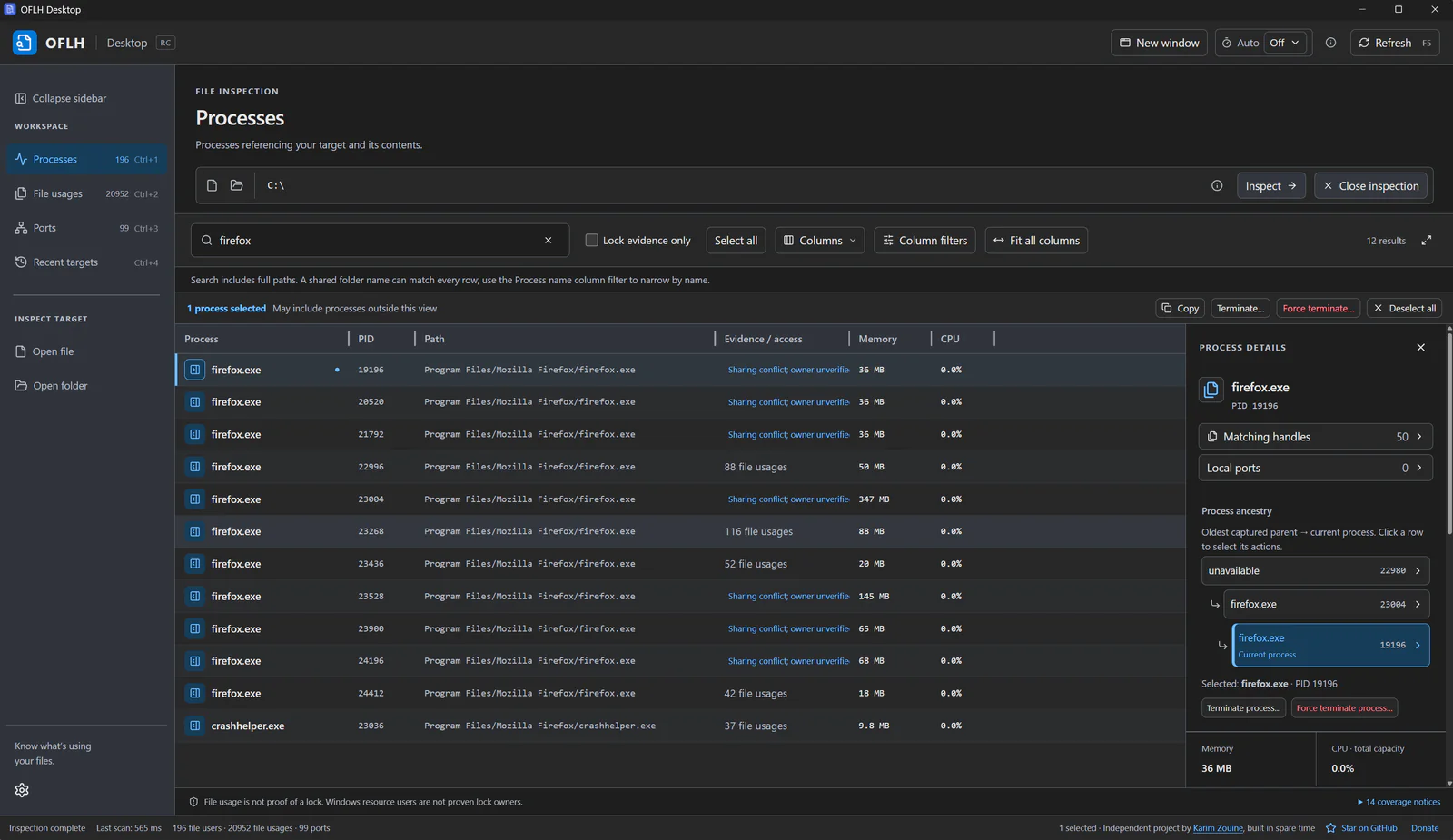
Follow Process ancestry to identify the editor, browser, terminal, or service behind a helper process. Right-click a row to copy its path or PID, reveal it in the file manager, or view its matching files.
An open file is not proof of a lock. Lock evidence only filters for evidence; Windows rows marked owner unverified do not identify a proven lock owner.
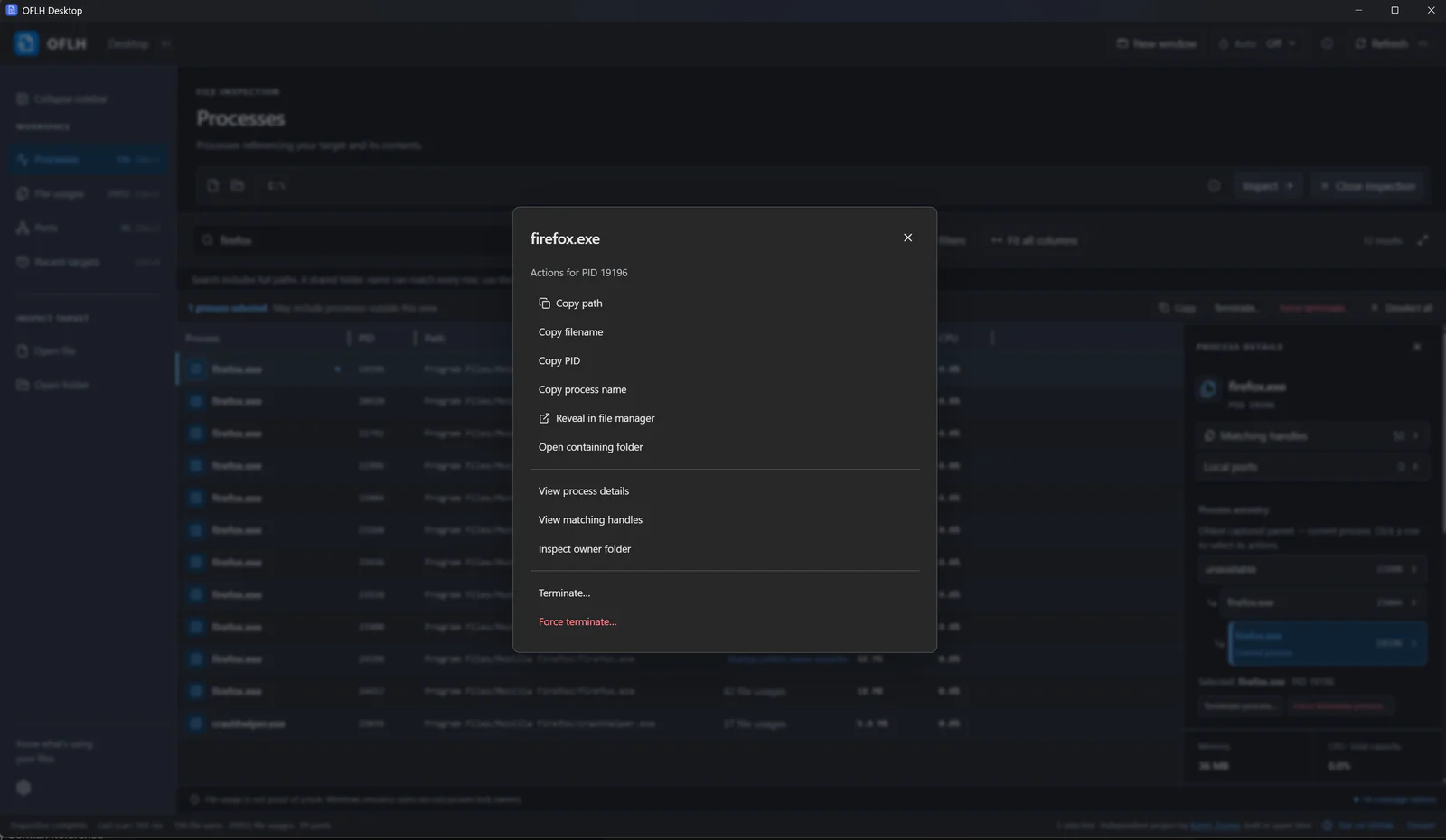
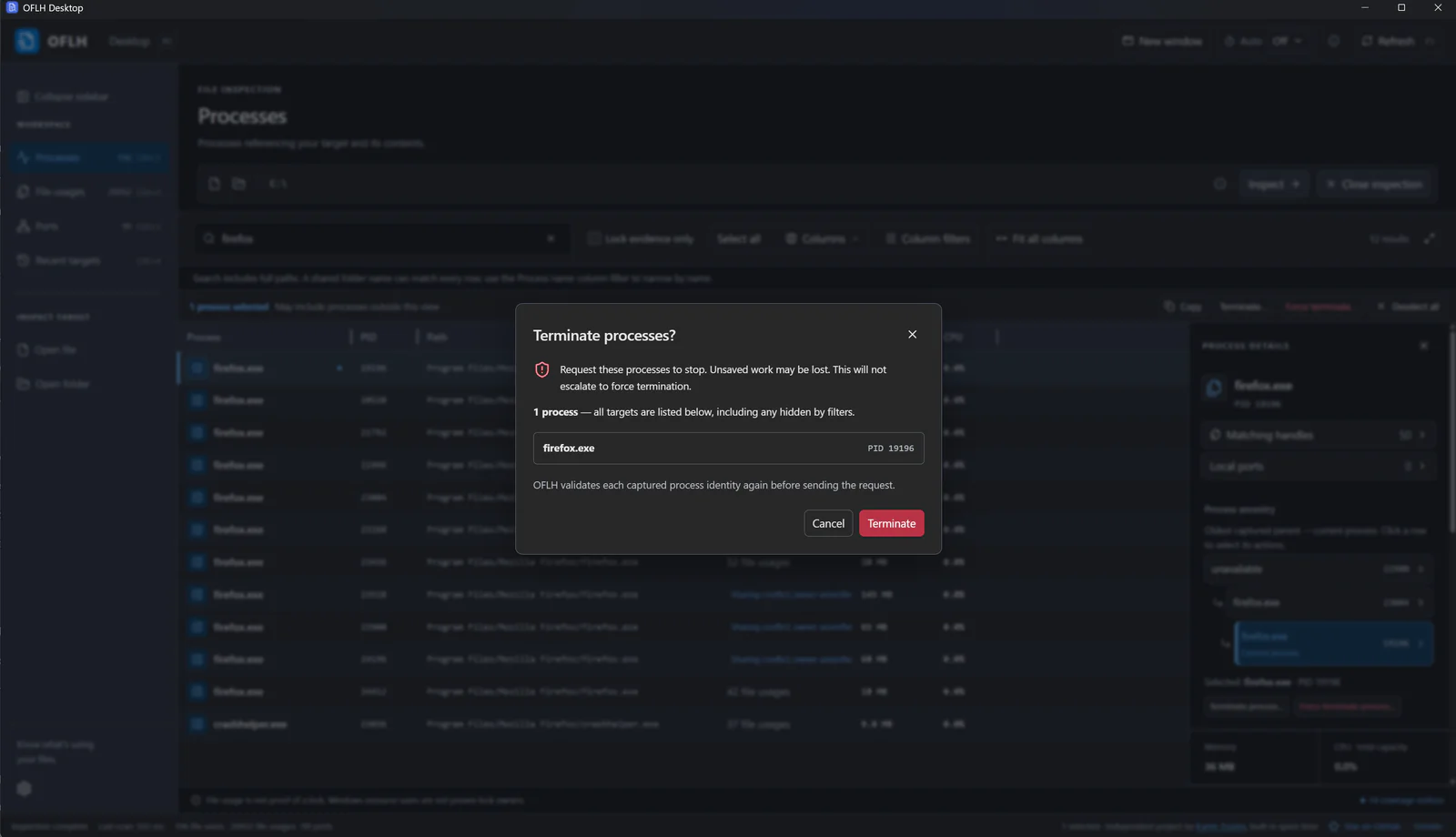
Close the application normally when possible. If you use Terminate, the confirmation names every selected process, including those hidden by filters, and defaults to Cancel. OFLH rechecks each process identity before acting.
Save your work first: terminating a process can lose unsaved changes. Refresh with F5 afterward to check whether the file is still in use.
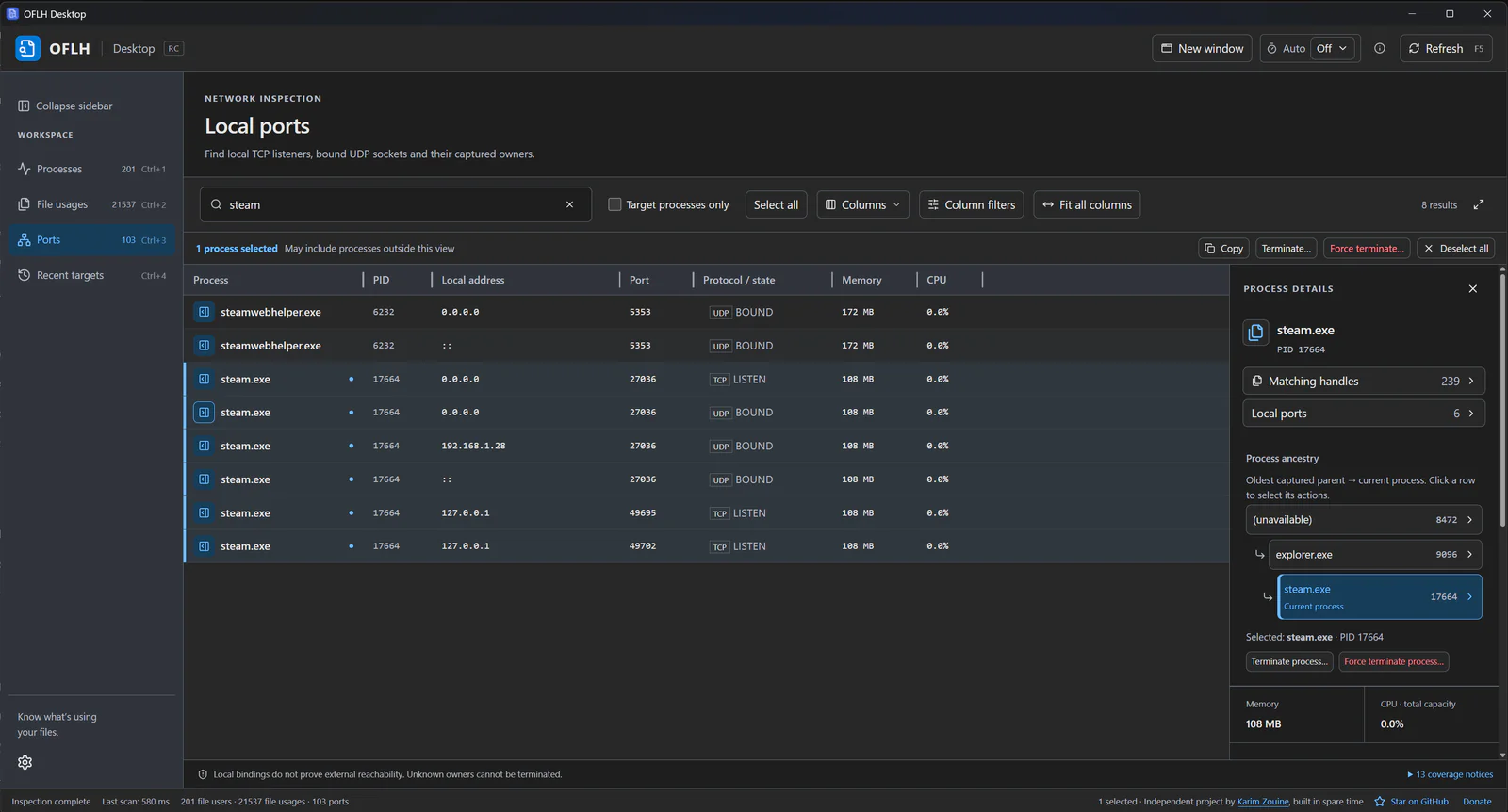
Open Ports and search port:3000 to find the process bound to that port. Use terms such as tcp, udp, or pid:1234 to narrow the list, then select a row for its files and parent tree.
Ports shows local TCP listeners and bound UDP sockets. It does not show established connections or prove that a port is reachable from another machine.
Find the app behind a busy file or occupied port, understand what it holds, and decide what to close.
Point oflh at a file, a folder, or C:\. A folder scan covers everything inside it and shows how each process uses it: open file, mapped file, executable, or (on Linux and macOS) working directory.
oflh --port 3000 shows the TCP listener or bound UDP socket on a port, with its PID and address. Socket tables are read directly; oflh does not shell out to lsof, ss, or netstat.
Every result carries its parent chain, so a node or dotnet worker can be traced back to the editor, terminal, or service that started it.
Lock evidence is reported separately from plain open files. When Windows cannot prove which process holds a lock, the row says “owner unverified” instead of guessing.
oflh never closes handles inside another process. It asks the app to close or terminates it after a confirmation that defaults to Cancel, and re-checks the PID and start time first.
Scanning stays on your machine. Written in Rust, MIT licensed, and tested on native Windows, Linux, and macOS runners for x86-64 and ARM64.
lsof and fuser cover Linux and macOS; Resource Monitor, Process Explorer, and handle.exe cover Windows. They are good tools. oflh differs in three ways:
Ask which process holds a file or port the same way on Windows, Linux, and macOS, then select the process and close it in the app. No copying PIDs into kill or taskkill.
oflh was built with speed as a primary goal: it matches the files that running processes hold against your target instead of walking the disk. In our own measurements, scanning all of C:\ or / took 195–510 ms.
Open files and actual lock evidence are listed separately. When Windows cannot prove which process holds a sharing conflict, the row says “owner unverified” instead of naming a guessed culprit.
oflh is optimized for speed. It does not walk the directory tree; it asks the operating system which files each running process holds, so scanning all of C:\ or / takes about as long as a small folder.
C:\C:\/Windows folder with 2,048 files, 128 held open (median of five runs): earlier Restart Manager backend → current backend
These are our own measurements: single backend runs on 5–6 October 2026 (Windows on GitHub runners, Linux on a local machine), without app startup. Hardware, process count, and permissions change the result. Method, raw data, and how to reproduce →
To scan a whole drive, open C:\ or / like any other folder. Quick start ↑
Worth knowing before you download.
Both apps are interactive. The terminal app exits with an error when it is not attached to a terminal, and there is no JSON output, so it is not a drop-in for scripts or CI.
Processes owned by other users or protected by the OS may be missing; scans with gaps say “Results may be incomplete”. Run elevated for broader coverage.
A sharing conflict proves the file is restricted, not which process restricted it. Such rows say “owner unverified”.
Ports means TCP listeners and bound UDP sockets, not established connections or whether a port is reachable from another machine.
Releases are not code-signed or notarized, so Windows may show “unknown publisher” and macOS may block the app. Check the download against the SHA-256 checksums in checksums.txt before you allow it.
Free for Windows, Linux, and macOS, on x86-64 and ARM64.
Latest release: v0.8.0 · release notes
Choose this version for a graphical app with windows, buttons, and a process list.
Desktop app
Download desktop appInstaller · x86-64| Package | x86-64 | ARM64 |
|---|---|---|
| Installer | Download | Download |
Desktop app
Download desktop app.dmg · Apple silicon| Package | Apple silicon | Intel |
|---|---|---|
.dmg | Download | Download |
Because the application is unsigned, macOS may report it as “damaged.” Allow it to run manually with this command in Terminal, then reopen it. Adjust the path if installed elsewhere.
xattr -cr "/Applications/OFLH Desktop.app"Desktop app
Download desktop app.deb · x86-64| Package | x86-64 | ARM64 |
|---|---|---|
.deb | Download | Download |
.rpm | Download | Download |
.tar.gz | Download | Download |
brew install --cask karimz1/tap/oflh-desktopThe Homebrew tap is updated separately and can be behind the latest release. Run brew info to see which version it installs.
Homebrew installs the same unsigned application. macOS may block its first launch.
Because the application is unsigned, macOS may report it as “damaged.” Allow it to run manually with this command in Terminal, then reopen it. Adjust the path if installed elsewhere.
xattr -cr "/Applications/OFLH Desktop.app"This version runs inside a terminal. Open PowerShell on Windows or Terminal on macOS and Linux. Double-clicking the CLI file does not open the desktop app.
Terminal version (CLI / TUI)
Download terminal version.exe · x86-64| Package | x86-64 | ARM64 |
|---|---|---|
.exe | Download | Download |
Terminal version (CLI / TUI)
Download terminal versionApple silicon| Package | Apple silicon | Intel |
|---|---|---|
| Executable | Download | Download |
Terminal version (CLI / TUI)
Download terminal versionx86-64| Package | x86-64 | ARM64 |
|---|---|---|
| Executable | Download | Download |
brew install karimz1/tap/oflh-cliThe Homebrew tap is updated separately and can be behind the latest release. Run brew info to see which version it installs.
Pick the file for your OS and CPU. It is a single executable with no installer. Rename it to oflh (oflh.exe on Windows), make it executable on macOS and Linux, and put its folder on your PATH.
No installer. Rename the download, then run it from the folder you saved it in.
mv ./oflh-cli.darwin.arm64 ./oflh
chmod +x ./oflh
./oflh ./build
Apple silicon shown. Intel Mac: oflh-cli.darwin.amd64. Linux: oflh-cli.linux.amd64 or oflh-cli.linux.arm64.
Rename-Item .\oflh-cli.windows.amd64.exe oflh.exe
.\oflh.exe .\build
x86-64 shown. ARM64: oflh-cli.windows.arm64.exe.
Releases are not code-signed or notarized, so Windows may show “unknown publisher” and macOS may block the app. Check the download against the SHA-256 checksums in checksums.txt before you allow it. Installation notes.
What each operating system can and cannot detect: Platform support →
Windows says “The process cannot access the file because it is being used by another process” or “the file is open in another program”, but not which one. Run oflh path\to\file in PowerShell, or open the file in OFLH Desktop. You get every process using it, including programs that loaded it as a module, and the Locked files view shows whether the file has a read, write, or delete sharing conflict. To check a folder or a whole drive, pass the folder or C:\ instead.
When a server fails with “address already in use” (EADDRINUSE), run oflh --port 3000. It shows the TCP listener or bound UDP socket on that port with its PID, process name, and address; oflh --ports lists all of them. In the desktop app, open the Ports view and search port:3000. Only local bindings are shown, not established connections.
A process still has a file, a memory mapping, or its working directory inside the path you are trying to remove or unmount. Run oflh on that path to see which processes, how each one uses it, and which app started them, then close or stop the right one. “Text file busy” means a process is running that file; it shows up as an executable.
C:\ or / at once?Yes. Run oflh 'C:\' in PowerShell or oflh / on Linux, or choose the root with Open folder in the desktop app. oflh matches live process references instead of walking the disk, so whole-drive scans took between 195 and 510 ms in our own measurements. See the measurements.
No. The Processes view lists every process with a reference to the target. Locked files (Lock evidence only in the desktop app) needs actual evidence: POSIX, flock, or OFD locks on Linux, byte-range conflicts on macOS, sharing violations on Windows. Windows cannot always prove which process caused a sharing violation, so those rows are labeled owner unverified.
No. Force-closing a handle inside another process can corrupt that program's state, so oflh does not do it. It shows you the process and the app behind it, then lets you close it normally or terminate it after a confirmation that defaults to Cancel. Save your work first: terminating a process can lose unsaved changes.
Select the process and look at its parent tree, which runs from the oldest recorded parent down to the selected process. It connects a worker such as node or dotnet to the editor, terminal, or service that started it. In the terminal app, press Tab to focus the tree. Parents that cannot be identified are marked as unavailable.
No. oflh runs as a normal user and shows the processes your account can inspect; when some could not be read, it says “Results may be incomplete”. Running it elevated shows more. The desktop app offers Retry with administrator privileges when a termination is denied.
Not yet. Both apps are interactive: the terminal app exits with an error when it is not attached to a terminal, and there is no JSON output.
No. Scanning is local; file names, contents, process data, and results stay on your machine. Release builds check for a newer version by fetching a small JSON file from this website, with GitHub as a fallback, and the request carries no paths or process data. Turn it off in the terminal app with --no-update-check. The source and build logs are public on GitHub.