
Guides
Which process is using this file?
The error tells you that a file is in use, but not by what. This guide shows how to find the process on Windows, macOS, and Linux with built-in tools and with OFLH Desktop, and how to free the file without losing work.
On this page
The error messages this guide covers
- Windows Explorer: “The action can't be completed because the file is open in another program.”
- Windows programs and .NET: “The process cannot access the file because it is being used by another process.”
- macOS Finder: “The operation can't be completed because the item is in use.”
- Linux and macOS terminals: “Device or resource busy” (often when unmounting) and “Text file busy” (when replacing a running program).
They all mean the same thing: a running process still references the file, its folder, or the drive. Closing that process, or the app that started it, frees the file.
Find the process with OFLH Desktop
Open OFLH Desktop and choose Open file for a file or Open folder for a folder. You can also inspect a whole drive such as C:\. On Windows, another way to start is to right-click the file in File Explorer and choose Inspect file.
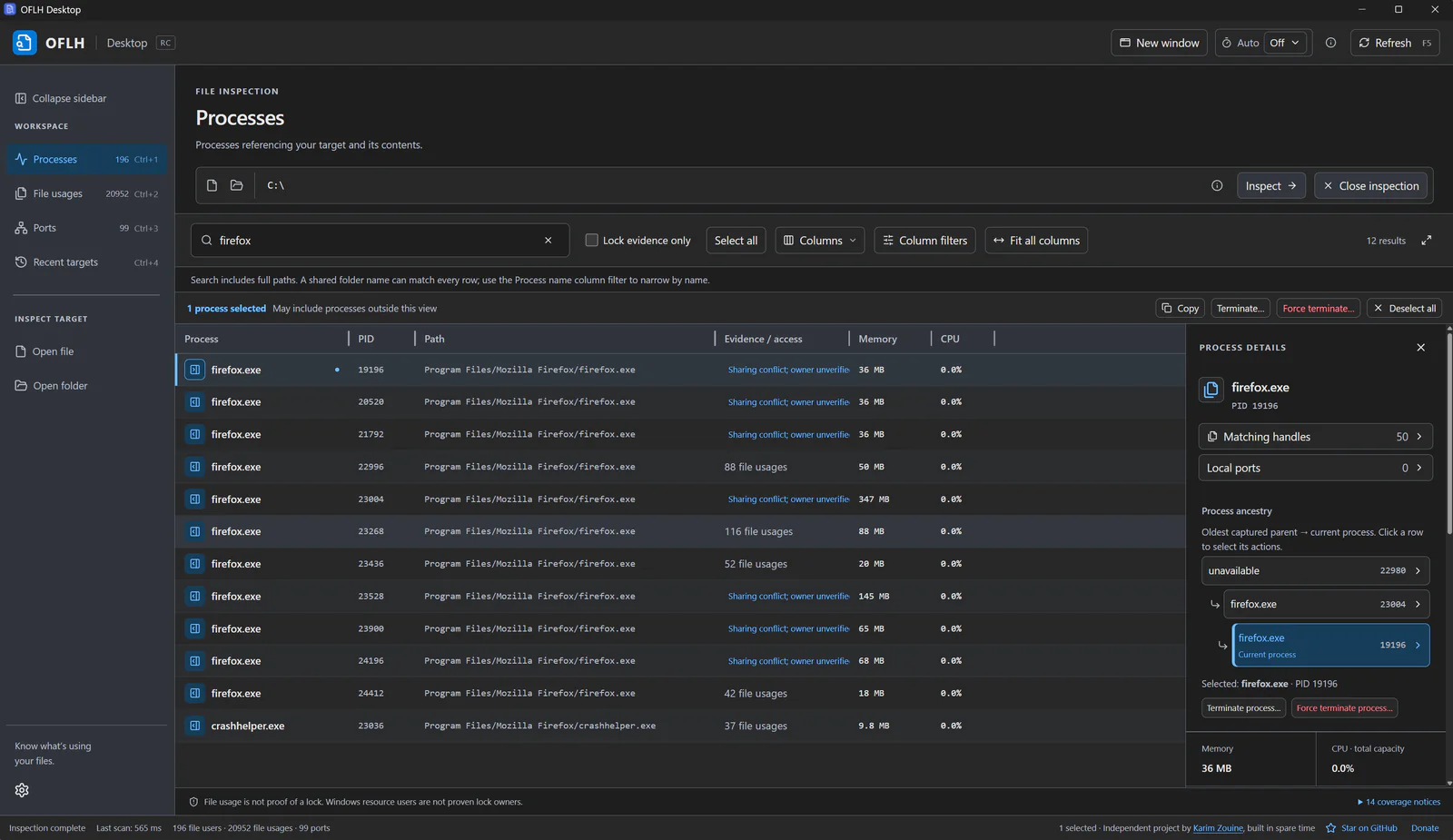
The screenshot shows a scan of C:\, filtered by firefox. Each row is a running process, a running part of an app. Its PID is the number that distinguishes it from other processes. Select a row: Matching handles on the right shows its file references, and Process ancestry shows its parents. This helps you connect the result to the app behind it.
An open file is not proof of a lock. Turn on Lock evidence only to keep results with lock evidence. When Windows cannot prove which process caused a sharing conflict, OFLH shows owner unverified rather than presenting a guess as a confirmed owner.
Close the right program
Use Process ancestry to check which app the process belongs to. A helper such as node or dotnet may have been started by an editor or terminal. Save your work and close that app normally whenever possible.
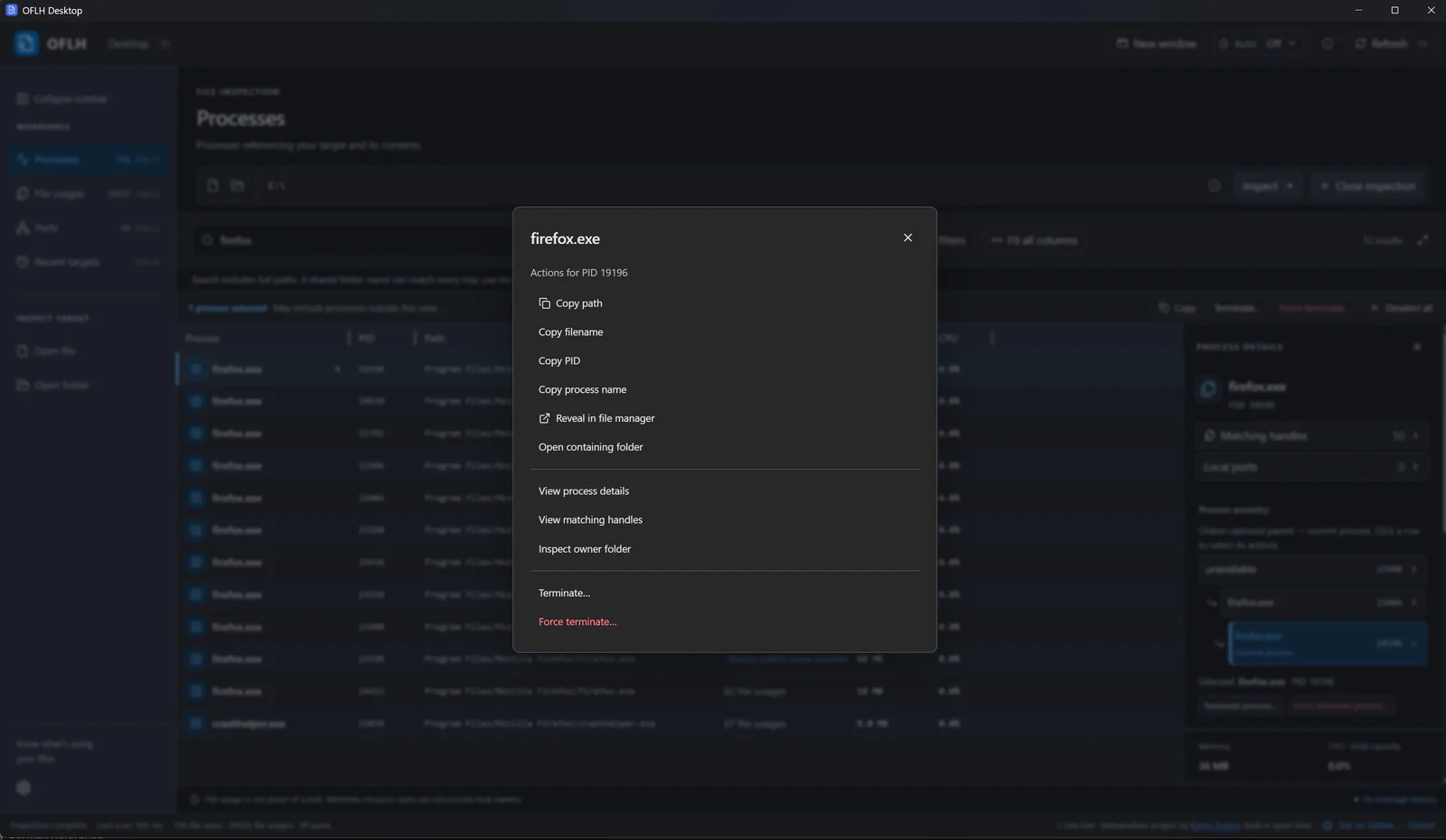
The screenshot shows the right-click menu for firefox.exe. Copy path copies the program's path, Copy PID copies its process number, and View matching handles shows its file references. These let you check a result before stopping anything.
If the app cannot be closed normally, you can choose Terminate. Check the name and PID in the confirmation, or choose Cancel to stop. After closing or terminating the app, press F5 to check whether the file is still in use.
Terminating is the last resort
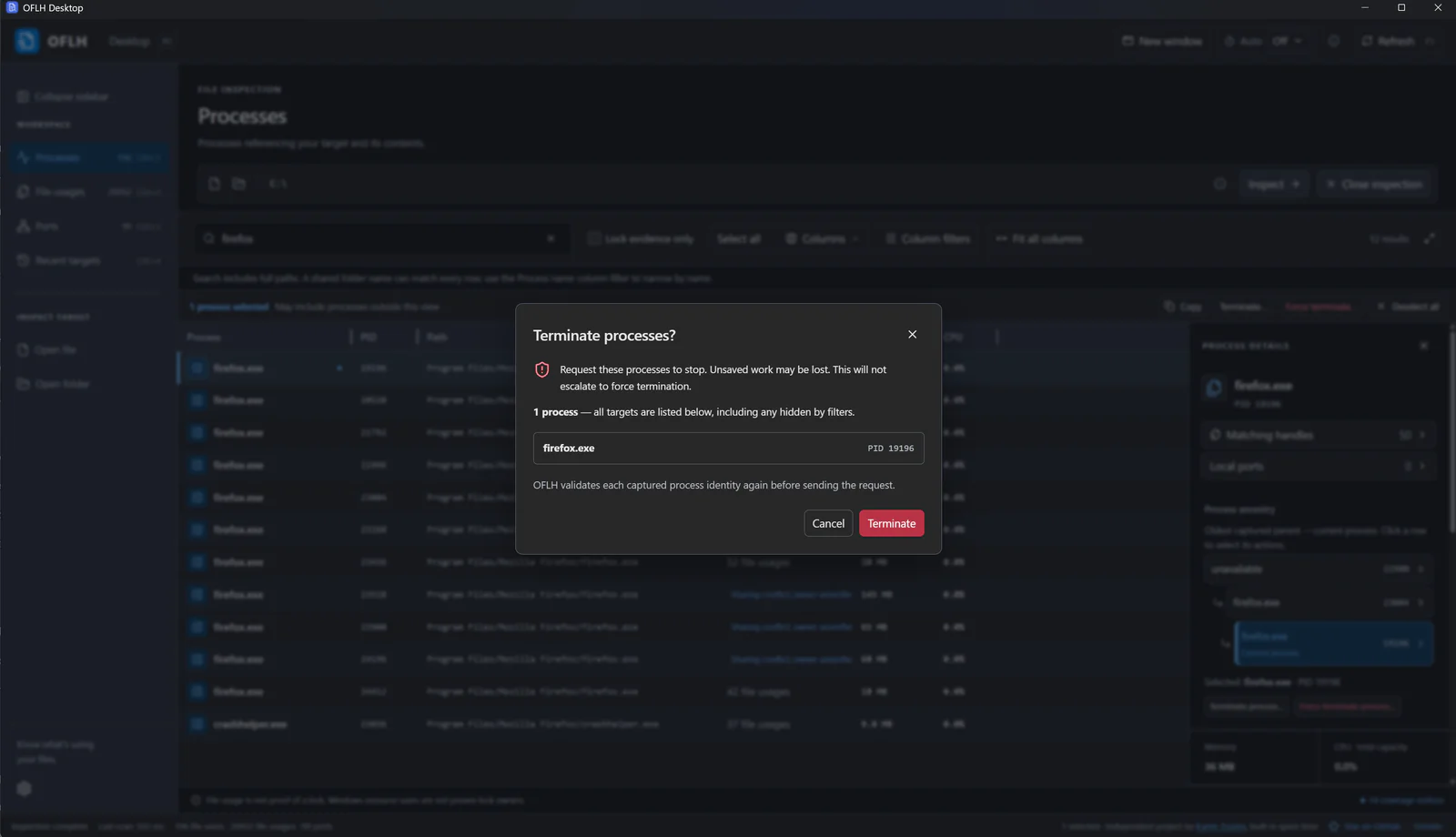
The screenshot shows Terminate processes? for firefox.exe. The dialog names the process and its PID and warns about losing unsaved work. Check the list; it also includes selected processes currently hidden by a filter. Choose Cancel if you are unsure.
Before acting, OFLH checks that it is still the same process. It does not close individual file handles inside another app. Terminating a process can still lose unsaved work, so closing the app normally remains the first choice.
Windows without extra software
Resource Monitor (resmon.exe): on the CPU tab, type part of the file name into Associated Handles. Microsoft's Process Explorer has Find > Find Handle or DLL, and the Sysinternals command-line tool Handle searches by name fragment; it needs administrator rights:
handle.exe C:\path\to\file.txtmacOS and Linux in the terminal
lsof lists processes with the file open. On Linux, fuser -vm shows everything that keeps a mount point busy:
lsof /path/to/file
lsof +D /path/to/folder   # recursive, can be slow
fuser -vm /mnt/usb        # Linux: what keeps the mount busy
The same with the oflh terminal app
oflh path/to/file shows the processes, how each one uses the file, and the app that started them, on Windows, macOS, and Linux. oflh / or oflh 'C:\' scans a whole drive.
Screenshots from the project README: OFLH Desktop on Windows, in the dark theme. Select a screenshot to view it at full size.